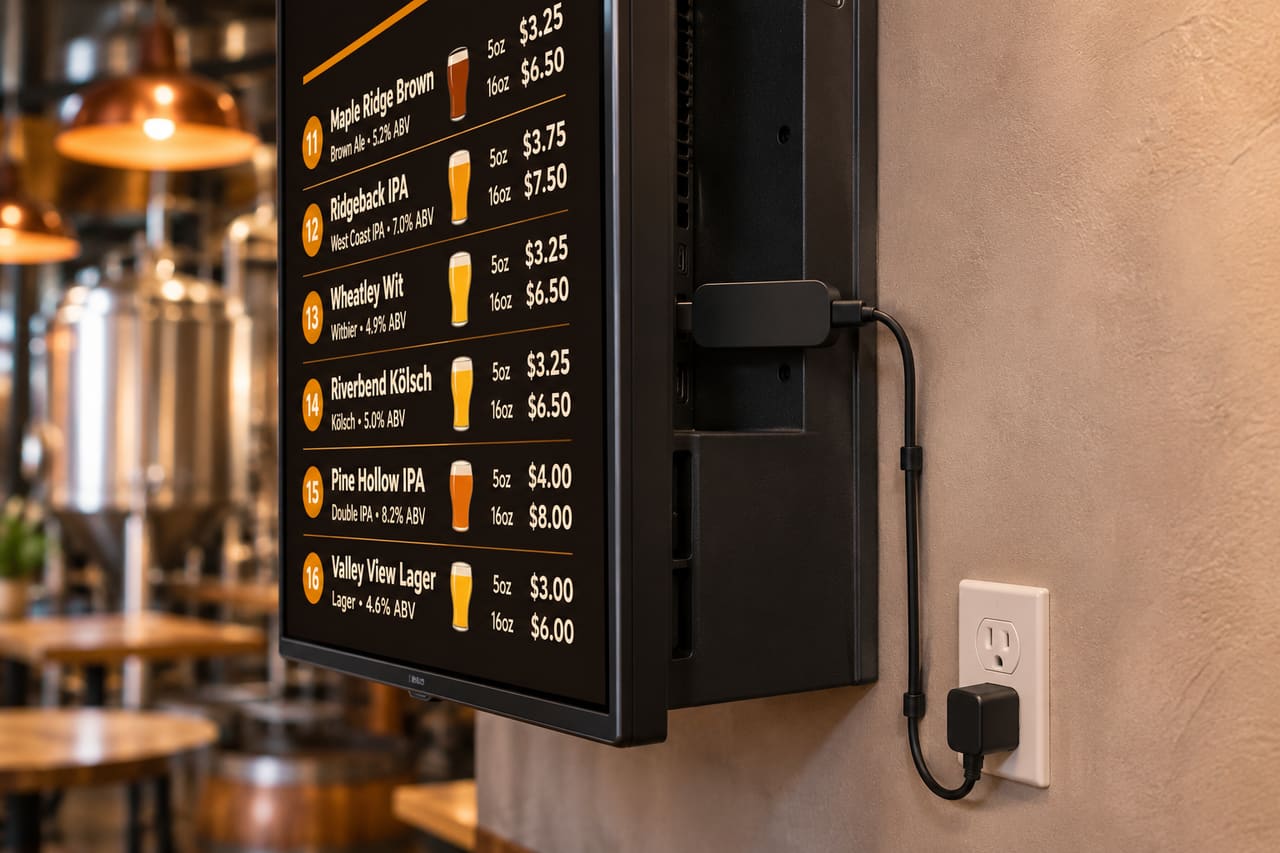
A TV menu board is the most visible piece of your taproom after the taps themselves. Done well, guests decide faster, staff answer fewer "what's that one?" questions, and a new release gets noticed. Done badly, it's a blurry slideshow nobody updated since Tuesday. Here's how to do it well.
1. Decide what the board is for
Before buying anything, decide what the screen has to show. Most taprooms need:
- The tap list: tap number, beer name, style, ABV and price per pour size.
- What's next: an "on deck" line builds anticipation for releases.
- A way to see more: a QR code to the full web menu with descriptions.
Food menus, events and promos are nice, but every extra page means guests wait longer to see the beer they care about. Keep the beer list on screen most of the time.
2. Pick the screen and the player
You need a display and something that runs the menu. The simplest reliable combination is a standard LED TV plus a streaming stick:
- Amazon Fire TV Stick 4K or Amazon Signage Stick: inexpensive, widely available, easy to swap if one dies.
- Google TV / Android TV: built into many TVs (Sony, TCL, Hisense) or via a Google TV streamer.
- Roku: fine for menus that change a few times a day.
- The TV's own browser: works on many LG and Samsung sets, but smart-TV browsers vary and some go to sleep on their own.
- Raspberry Pi or mini PC: good for DIYers and portrait screens.
Avoid OLED TVs for a menu that sits on screen all day; static layouts are exactly what causes burn-in. See our TV buying guide for sizes and brightness.
3. Mount it where people actually look
- Above or behind the taps is the default for a reason: guests are already looking there while they wait.
- Height: high enough to see over a crowd at the bar, low enough that people at the back don't have to crane. Tilt mounts help when the screen sits above head height.
- Glare: check the spot at the time of day you're busiest. A window reflecting across the screen will kill readability.
- Power and HDMI: plan an outlet behind the TV. Plug the streaming stick into the wall, not the TV's USB port, which often switches off with the TV and can be underpowered.
4. Get it online and keep it online
Menu players need a network connection to pick up changes. Ethernet is best (most streaming sticks support a USB Ethernet adapter). On Wi-Fi, use your staff or back-office network rather than guest Wi-Fi with a captive login page; those pages expire and the TV silently stops updating.
A good player keeps showing the last menu it downloaded if the connection drops, then catches up. Test this: pull the network for a minute and make sure the board doesn't go blank.
5. Design for distance
A menu that looks great on your laptop can be unreadable from twenty feet. A common signage rule of thumb is about one inch of letter height for every ten feet of viewing distance, more for older eyes and dim rooms. In practice:
- Fewer items per page. 8 to 12 beers per landscape page is comfortable; past that, paginate instead of shrinking the text.
- High contrast. Light text on a dark background works best in dim taprooms; dark on light suits bright, daylit rooms.
- One accent color for tap numbers or prices, so the eye can scan columns.
- Only the fields people use. Name, style, ABV and price first. IBU, descriptions and brewery names for guest taps if there's room.
- Slow page timing. 10 to 15 seconds per page lets people actually read.
6. Make updating effortless
The real reason TV menus go stale is that updating them is a separate job. If changing a beer means editing a slide in one app, a PDF in another and the website in a third, it won't happen on a busy Saturday.
Use a system where one tap list drives the TV, the web menu, the QR code and the printed menu. Whoever kicks the keg should be able to update the board from a phone in under ten seconds.
7. Test it like a guest
- Stand at the far end of the room. Can you read the beer names and prices?
- Time how long it takes to find the cheapest lager. Over ten seconds is too long.
- Scan the QR code on an older phone. Does the menu load quickly without an app?
- Turn the TV off and on. Does the menu come back on its own?
Setting it up with BreweryTV
Install the BreweryTV app on the TV (or open play.beermenu.tv in its browser), enter the 6-character code at beermenu.tv/pair, and pick a theme. Your first screen is free; additional screens are $15/month. The TV apps & hardware guide covers each platform.